

General
Filling Missing Dates with Pentaho Data Integration
When working with Pentaho Data Integration, there may be situations where you need to fill in values for missing dates. In this short tutorial, I will explain how to handle this.
Defining the Problem
Let's start by defining the problem. Assume we have a list of values with dates that are ordered but contain gaps. As a simple example, imagine that we are retrieving exchange rates through the EVDS API. In this case, our exchange rate dataset will not contain values for weekends and other public holidays.
Our goal is to fill the missing days using the most recent exchange rate available before each missing date, ensuring that there are no gaps in the dataset.
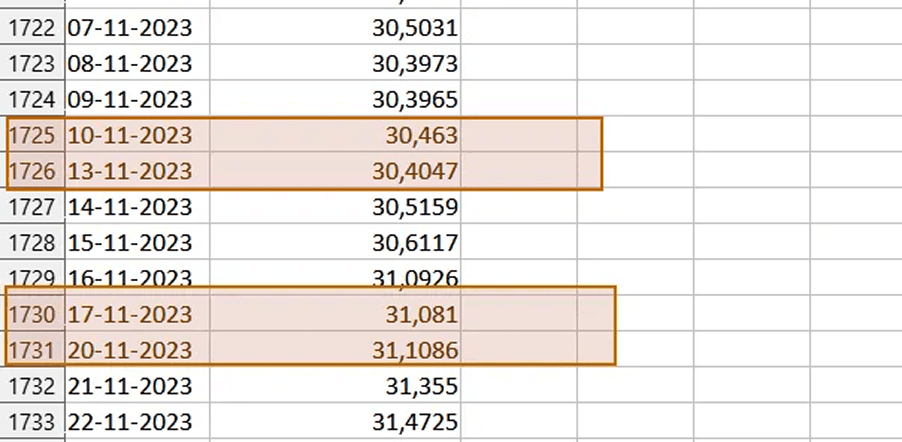
In this example, the missing data for weekends is clearly visible.
Identifying the Missing Date Ranges
First, we add an Analytic Query step to prepare the data for identifying the missing date ranges.
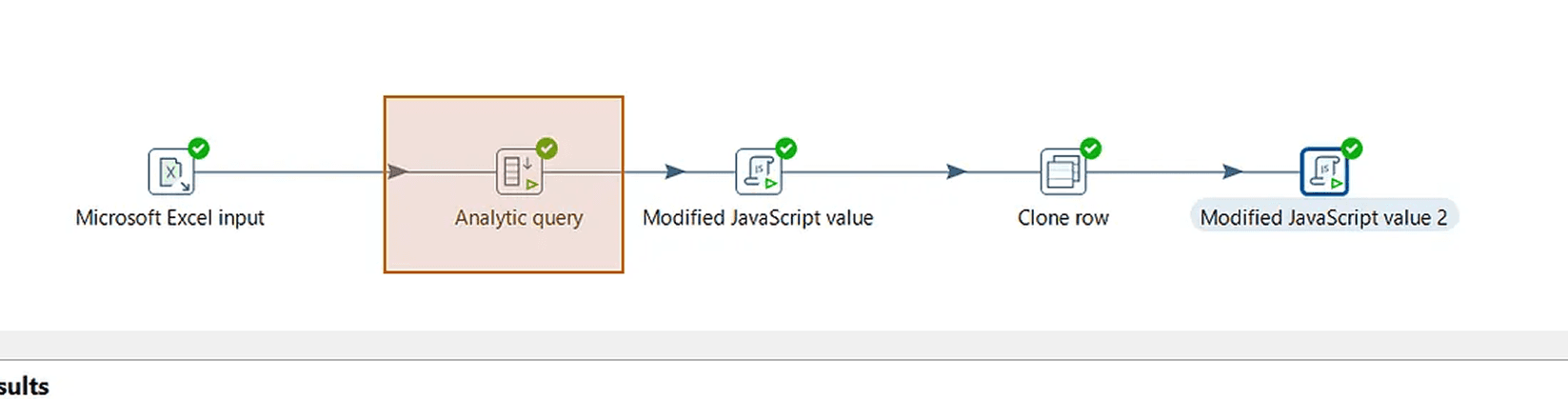
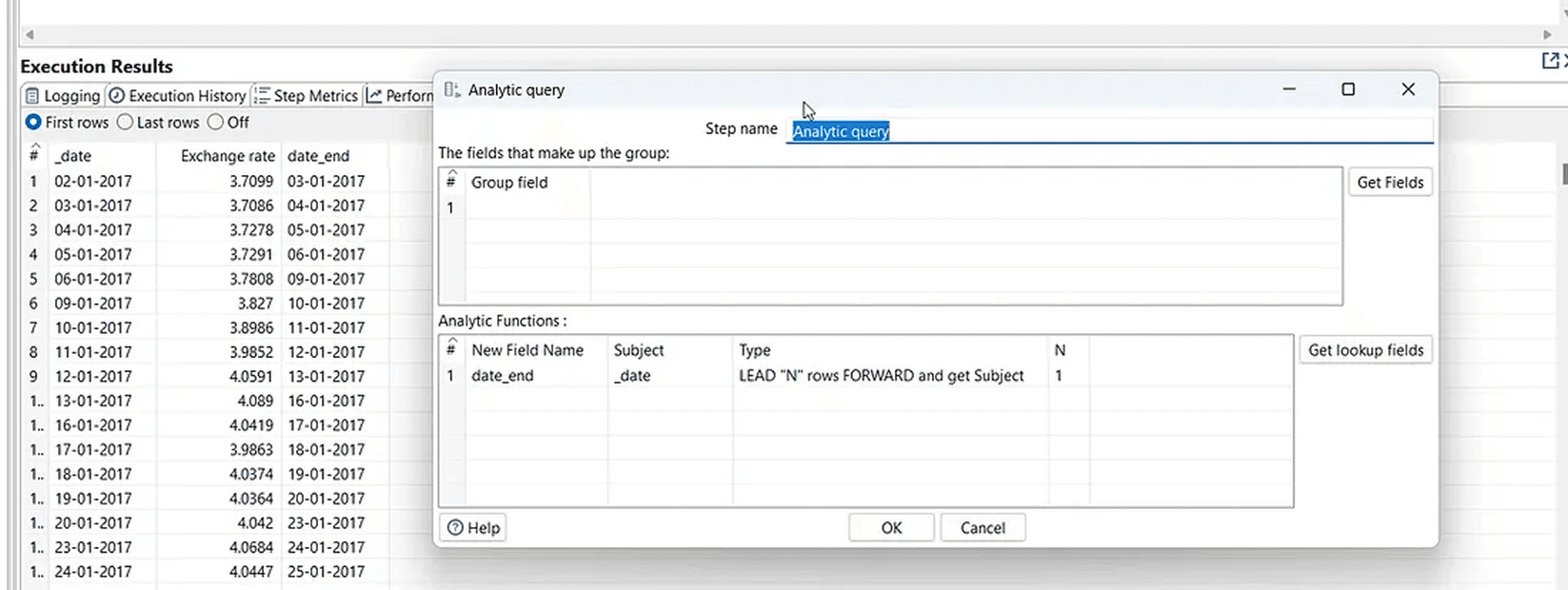
At this point, our main goal is to create the ranges between the dates where values are missing.
Calculating the Number of Missing Days
In the next step, we need to calculate the number of missing days between the dates. For this, we use a JavaScript Step.
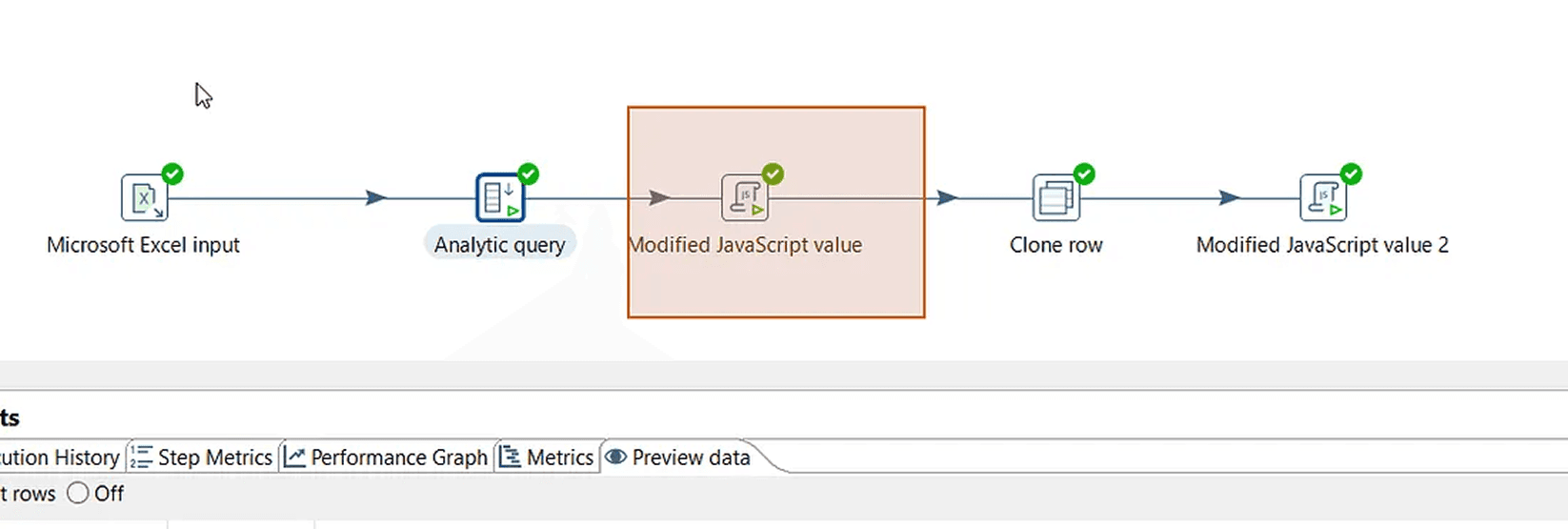

Using the date_end field generated by the Analytic Query step, we calculate the number of days between the dates and store the result in a field called gap.
If the result is 1, it means there are no missing days between the two dates. If it is greater than 1, there are missing days. Therefore, we apply a small adjustment by subtracting 1 at the end.
There is also a small adjustment at the beginning of the script to handle the final date, since there are no following days after it.
Creating the Missing Rows with Clone Row
Now, we will duplicate our rows to create the missing records. For this, we use the Clone Row step.
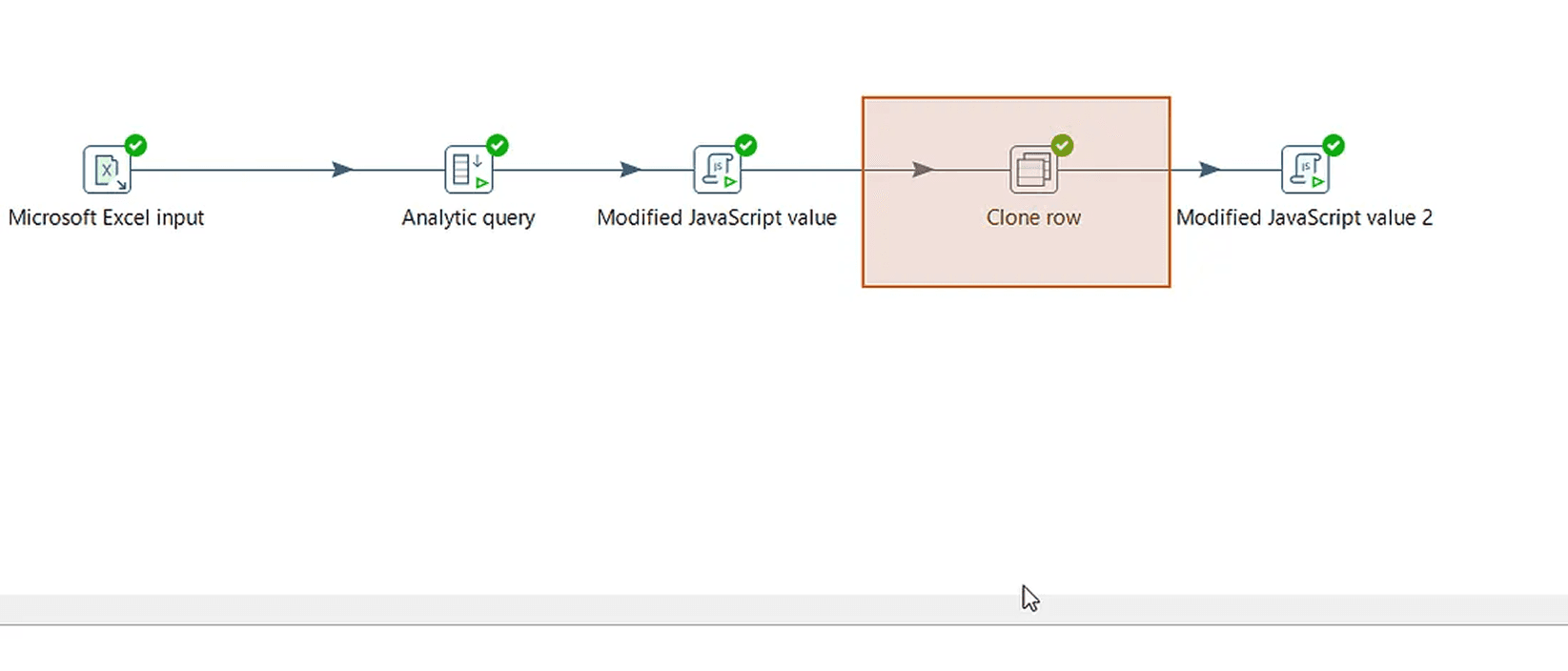

The key point here is to create as many cloned rows as the gap value we calculated in the previous step. This allows us to generate rows for the missing days.
However, as you can see, the _date field is repeated for the newly created missing days, so one final adjustment is needed. You can see this in rows 5, 6, and 7 in the preview.
For this purpose, we also create a variable called day_num in this step.
Adjusting the Dates to Complete the Missing Days
For the final adjustment, we use another JavaScript Step.
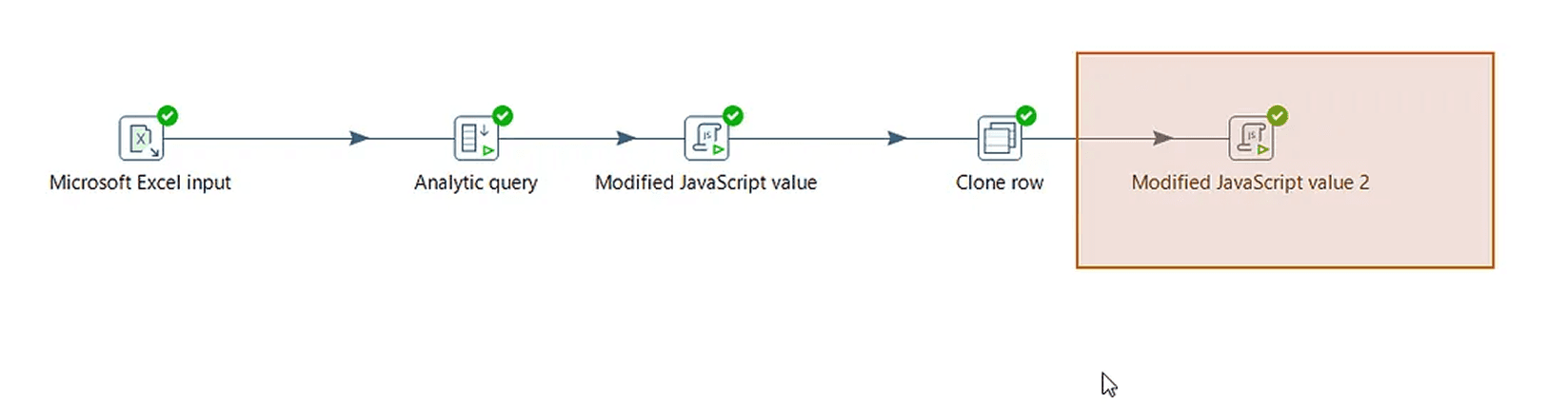
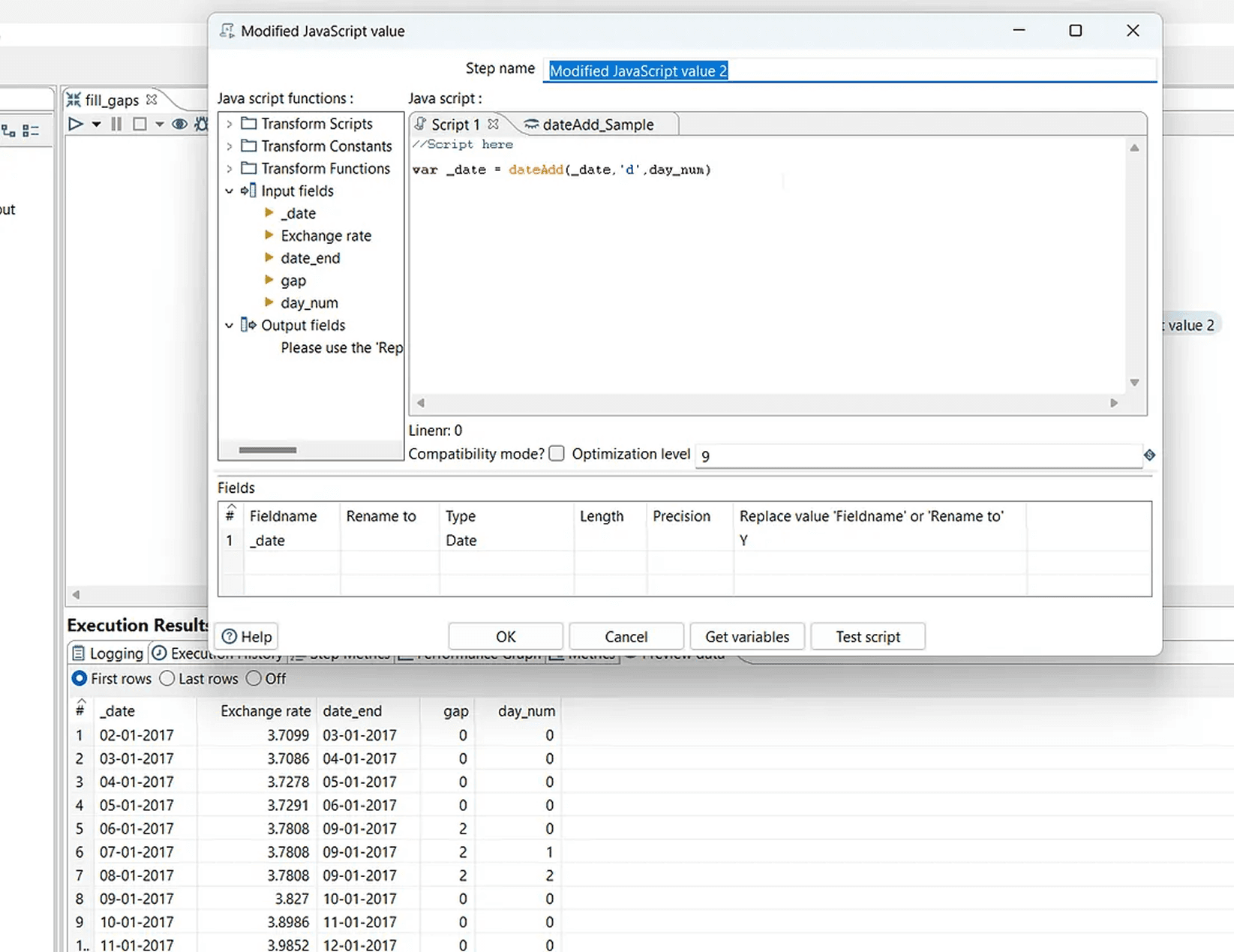
By adding the value of day_num to the _date field, we adjust the dates accordingly. This completes the missing dates while preserving the most recent available exchange rate for each generated day.