

General
How to Move Large Data Between Linux Servers with rsync
A practical guide to rsync at scale - every flag explained, every flag you skipped explained, and how to prove the copy is actually correct
Copying a directory between two Linux servers is a solved problem. Then the directory grows to a few hundred gigabytes and a million-odd files, and every assumption behind “it’s a solved problem” quietly stops holding.
The copy no longer finishes inside your SSH session. An interruption halfway through is not an inconvenience but a design consideration. cp -r no longer tells you anything useful about whether it worked. And in some storage layouts — content-addressable stores in particular — a file that only half arrived does not look like an error. It looks like a file.
This guide is about that transition: what changes when data gets large, how to build a transfer command by reasoning rather than by copy-paste, and how to verify the result in a way that would actually catch a problem.
It is written to be read before you run anything.
Part 1 — What actually changes at scale
Four things break as volume grows. Every decision later in this guide traces back to one of them.
Duration turns into a failure mode. A transfer measured in hours will outlive your SSH session, your VPN, your laptop lid. The question stops being “will it finish” and becomes “what happens when it doesn’t, and can I resume without starting over”.
File count costs more than file size. Moving 500 GB as ten large files and moving it as two million small ones are different problems on the same hardware. Every small file carries fixed overhead — a stat, an open, metadata, a close — and past a certain count you are no longer bandwidth-bound but syscall-bound. Your average file size is a real input to the design, not trivia.
“It looked fine” stops being evidence. With twenty files you eyeball the destination. With two million you need a procedure — and one that compares more than just how many files landed.
Partial writes become invisible. This is the one people underestimate, and Part 3 is devoted to it.
Part 2 — Why rsync, and not the obvious alternatives
Worth settling first, because the alternatives are genuinely better in specific cases.

That last point is why rsync wins for most migrations. The same tool that performs the copy can tell you afterwards what still differs between source and destination. Nothing else in the list can do that.
The tar | ssh case deserves an honest caveat: if you are moving a huge number of tiny files once, with a maintenance window you control, and you have an independent way to verify, it can be considerably faster. Reach for rsync when you want resumability and a verification story — which, for a production migration, you do.
Part 3 — Understand the shape of your data first
Not just how big. What kind.
The easy case: large files, ordinary layout
VM images, database dumps, media archives. Interruptions are the main risk, and a truncated file is obvious — wrong size, fails to open, checksum mismatch on first use. You will notice.
The dangerous case: content-addressable storage
Many document management systems (Nuxeo and Alfresco among them), backup tools, container registries and object stores use content addressing: the system hashes the bytes of a file, and that digest becomes the filename and the path.

The database stores digests. The filesystem stores bytes. Nothing else links the two.
This creates a failure mode with no equivalent in ordinary file trees. A truncated file does not look broken — it looks like a file. It sits at the correct hash path. find | wc -l counts it. ls lists it. The database resolves a document to it. The user downloads a corrupt PDF. No error, no log line, no alert.
Content addressing is supposed to guarantee integrity — but only if something verifies the hash, and the normal read path never does. It trusts the path.
So: if your storage is content-addressable, design the transfer so a partial file can never appear under its final name. One specific flag does that, and Part 5 covers it. If you take one thing from this guide, take that.
The other shape question: how the data is exposed
The same bytes behave differently depending on what sits on top:
Plain directory, no service — simplest case, copy freely
Live service writing to it — stop it for the transfer, or accept a copy that is not point-in-time consistent
Container with a bind mount — numeric UIDs must line up on both hosts
Database data directory — do not rsync it hot; use the database’s own dump/replication tools
Part 4 — Profile before you choose flags
This is the step that separates a command you understand from a command you copied. Six checks. Two minutes. Each answer removes a flag from your command or makes one safe.
Are there hard links?
Output means you need -H. Without it, every hard link is copied as a separate full file and the destination can balloon well past the source size. People discover this when the target disk fills at 140% of what they expected.
2. Are there ACLs or extended attributes?
Output means you need -A and -X respectively. SELinux labels live in xattrs, so on RHEL-family systems the answer is often yes.
3. How many distinct ownership combinations exist?
One line is the happy case — verification becomes a single stat comparison. Many lines means you must preserve ownership carefully and check it per-subtree.
4. What is the average file size?
This single number drives more decisions than any other:

5. Does the CPU support AES-NI?
This decides your SSH cipher, and getting it wrong makes things slower. Check both machines — the transfer encrypts on one and decrypts on the other, so the slower CPU sets the ceiling.
6. Is there room on the target, and is it empty?
An empty destination means the delta algorithm has nothing to compare against — which unlocks -W. A non-empty destination is a different transfer with different flags.
Rule of thumb: never copy an rsync command — this guide’s included — without running these six checks first. They are what makes a given command correct for a given dataset, and they are the only part of this article that is not optional.
Part 5 — Building the command
Rather than presenting a finished incantation, here is how it assembles. Start with the minimum that is correct:
-a alone is a valid transfer. Everything after this point is a deliberate addition with a stated reason.
The trailing slashes are not decorative.
/data/myapp/means the contents of this directory./data/myappwithout the slash means the directory itself, producing/data/myapp/myappon the target. This is the single most common rsync mistake. Both sides carry it in the examples here.
The assembled command, for the profile described so far — small files, empty destination, numeric UID match, gigabit LAN, AES-NI present:
Now, each flag: what it does, and how it can hurt you. The second half is the part tutorials skip, and it is the part that decides whether the flag belongs in your command.
-a — archive
What it does. Shorthand for -rlptgoD: recurse, preserve symlinks as symlinks, permissions, timestamps, group, owner, and device/special files. It is what makes the result a copy rather than an approximation.
How it can hurt you. Not directly — but through what it omits. -a does not include:

The lesson is not “always add -HAX". It is that -a is not "preserve everything", and adding all three blindly costs real memory and CPU across a million files — -H in particular has to build and hold a hard-link table. Add what your profiling found, and nothing more.
-W — whole file
What it does. Disables the delta-transfer algorithm. Normally rsync splits the destination file into blocks, checksums them, and sends only the differing blocks. That is brilliant over a slow WAN. It is pointless when the destination is empty — there is nothing to compare against, and you are spending CPU to discover that every block is missing. On a fast LAN, skipping the computation is free speed.
How it can hurt you. If a transfer is interrupted, a partially transferred file cannot be resumed mid-file — it is resent from byte zero. With small files that cost rounds to nothing. With multi-gigabyte files it is severe: an interruption at 90% of a 50 GB file throws away 45 GB of work.
Use
-Wwhen: the destination is empty and files are small and the link is fast. Skip-Wwhen: files are large, the destination has existing data, or the link is slow or unreliable.*
-W also cancels the speed benefit of --partial-dir below. The safety benefit remains — and that is the one that matters.
--numeric-ids
What it does. Transfers UIDs and GIDs as numbers without resolving them to names. Two reasons: name lookup across a million files is a measurable cost, and containers only ever look at the number, never the name.
How it can hurt you. If the same UID belongs to a different user on the target, files end up owned by that user and your service cannot read them. Check 3, plus comparing id output on both hosts, is what makes this safe.
Worth stating plainly, because instinct runs the other way: name-based mapping — the default, without this flag — is the more dangerous option. When a username maps to different UIDs on the two machines, rsync silently writes a different number than the source had. Numeric mode fails predictably; name mode fails quietly.
--partial-dir=.rsync-partial
The flag from Part 3. When a transfer is interrupted, incomplete data is held in a hidden .rsync-partial subdirectory inside the destination directory. The file is moved to its real name only once it is complete. An incomplete file never appears in the main tree, under any name anything else would look for.
For content-addressable storage this is the most important flag in the command. For ordinary file trees it is still good hygiene: nothing downstream ever reads a half-written file.
Why not plain --partial. --partial keeps incomplete data under the final filename. That is precisely the silent-corruption scenario from Part 3, implemented on purpose. --partial exists for resuming a large download you control end to end; it becomes actively dangerous the moment anything else reads that directory. The two flags look like variants of the same idea. They are opposites.
How it can hurt you. Combined with -W there is no speed benefit — a half file is resent from scratch either way — only safety. And an interrupted transfer can leave orphaned .rsync-partial directories behind, which is why verification explicitly hunts for them.
--info=progress2
What it does. Reports aggregate progress — total bytes, current rate, ETA — instead of per-file output. Past a few thousand files, per-file output is not a progress display; it is a denial-of-service attack on your terminal.
How it can hurt you. Practically, nothing. One caveat worth internalizing: rsync builds its file list incrementally, so it does not know the true total when it starts. Ignore the percentage and ETA for the first stretch of a large transfer — they are computed against a file list that is still growing, and they will be wrong, usually optimistically.
--exclude — and how its patterns actually work
Some things should not travel. Logs are the standard example, and the reason is not disk space.
If you copy the old instance’s logs to the new server, the new instance opens the same file and appends to it. You now have one log file interleaving output from two machines with no way to tell which line came from where. You discover this during your first incident on the new server — the worst possible moment.
Similar candidates: caches, temp directories, .Trash, search index directories that the application rebuilds anyway, and anything under a *_transient naming convention.
The pattern syntax is where people get hurt. In rsync, a leading / does not mean the filesystem root — it means the root of the transfer:
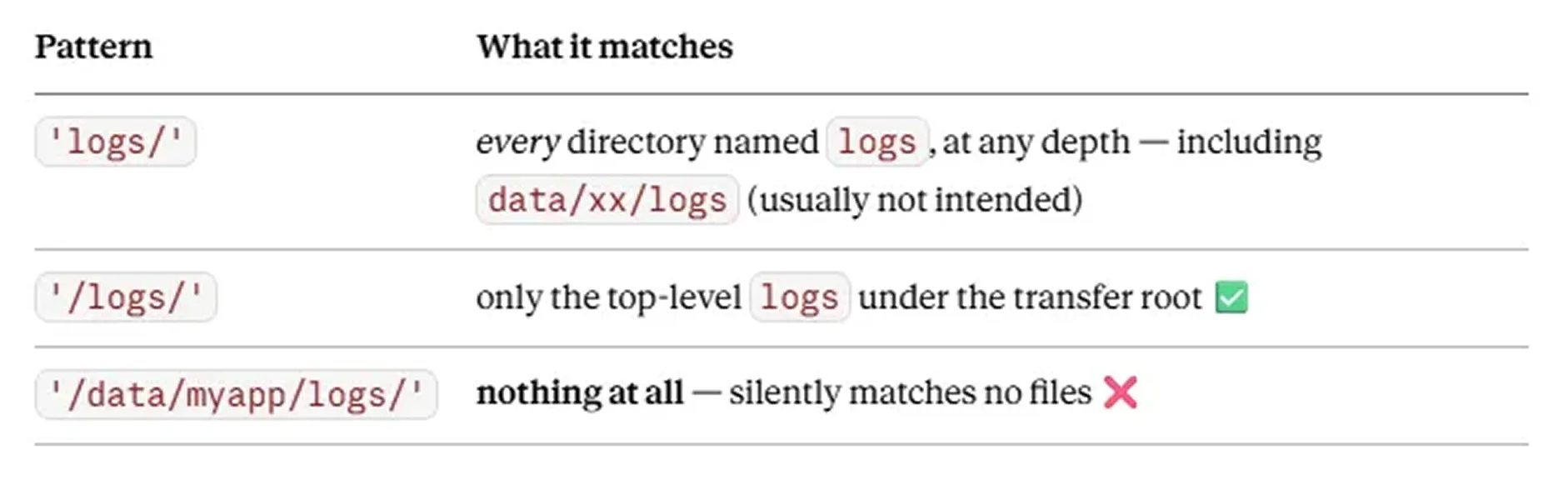
That third row is the trap. An over-qualified pattern does not error out. It quietly excludes nothing, and you find out when the files show up on the target.
How it can hurt you. The pattern must be repeated identically in every command that touches this tree — the transfer and the verification dry-run. Miss it during verification and rsync reports “logs missing on target”, leaving you to work out whether that is a real inconsistency or your own pattern drift. Put it in a variable used by both:
-e "ssh -c [email protected]" — choosing the cipher
What it does. Selects the SSH transport cipher. AES-128-GCM uses the CPU’s AES-NI hardware instructions. The modern default, ChaCha20-Poly1305, is a software cipher specifically designed for CPUs without AES acceleration.

Orders of magnitude, not specifications — measure yours with openssl speed -evp aes-128-gcm.
How it can hurt you. On a CPU without AES-NI it is dramatically worse — that bottom row is slower than the gigabit line you are trying to saturate. This is a flag to verify before using, never to copy.
The honest version. On a 1 Gbps link the practical difference is small, because ChaCha20 can already saturate ~125 MB/s of wire. The real gain is CPU headroom, which leaves more cores for rsync’s own work — directory walking, syscalls, file list management. On 10 Gbps, or when running parallel streams that compete for CPU, the difference becomes obvious. On a saturated gigabit link with one stream, this flag is close to a no-op — include it knowing that.
On security. AES-128-GCM is not a downgrade. It is an AEAD cipher (encryption plus integrity) and among OpenSSH’s recommended defaults. You are choosing between two strong ciphers based on hardware support, not trading security for speed.
Part 6 — Flags you should not use
Just as instructive, because most of these appear in tutorials as unconditional advice.

Part 7 — Running it so an interruption is survivable
Never run a multi-hour transfer in a bare SSH session. One dropped VPN and the process dies with it.
Run the transfer inside. Detach with Ctrl+A then D (tmux: Ctrl+B then D). Reattach with screen -r sync (tmux: tmux attach -t sync).
If it dies, run the exact same command again. This is rsync’s defining property: completed files are skipped, so a re-run resumes rather than restarts. Do not modify the command between attempts — changed flags mean a changed comparison, and you lose the guarantee.
Monitor from a second terminal:
Watch the destination disk. If the data lands on a filesystem shared with anything else, a full disk mid-transfer is a slow and irritating recovery. Intervene past 90%.
Estimating how long it will take
Two ceilings; the lower one wins:
Bandwidth ceiling — total size ÷ realistic throughput. A 1 Gbps link gives ~125 MB/s theoretical, ~100–110 MB/s realistic after overhead.
File-count ceiling — with small files, per-file overhead dominates and you may see far less than the link allows.
If measured throughput is well below the bandwidth ceiling, you are file-count-bound, and Part 8 is your remedy. Measure the link first so you know which problem you have:
Part 8 — Going parallel
A single rsync is one process doing one thing: stat, read, encrypt, write, repeat. When the CPU has idle cores and the link is not saturated, splitting the work wins — typically 30–50%.
Parallelism needs a natural partition. You cannot split one rsync; you run several over disjoint subtrees. What makes a good partition:
Roughly equal in size — otherwise you wait for the one heavy stream
Disjoint — two rsyncs writing the same directory tree will fight
Enumerable up front
Hash-prefix directories are ideal, because content addressing distributes files across them uniformly by construction. Date-partitioned trees (2024/01/, 2024/02/) work too. A tree with one enormous directory and forty tiny ones does not partition well — stay single-stream.
Move the light directories first, then fan out over the heavy partition:
Choosing -P. Start at 4–8. More is not better: past the point where the link, the disks or the CPU saturate, extra streams add seek contention and context switching and make things slower. On spinning disks the tipping point comes early — concurrent random reads are the worst case for a mechanical drive. On NVMe you can push higher. Watch throughput as you raise it and stop when it stops improving.
Two things to know about this path. --info=progress2 is dropped, because eight progress meters writing to one terminal is unreadable — use the watch loop instead. And exclusions that were relative to the old transfer root no longer apply: each stream has its own root now. Re-check that anything you meant to exclude is still outside the scope.
Verification is identical either way, and it is the same command in both cases.
Part 9 — Verifying, in layers
The step people skip because the transfer “looked fine”. Each layer catches something the previous one cannot.
Layer 1 — the dry run
The single most valuable check. Ask rsync what it would still need to change:
-n means dry run: nothing is modified. --delete here reports files on the target that are not on the source, rather than removing them. No file lines in the output means the copy is complete.
Note --exclude '/logs/' appearing again, character for character. This is the drift trap from Part 5.
Reading --itemize-changes output
Cryptic on first contact, but there are only a few codes you meet in practice. Each line starts with an eleven-character field (YXcstpoguax):,

.f....og... is the friendly one: no bytes need to move, you are one chown away from done. (Older rsync 2.x prints nine characters rather than eleven; same meaning, shorter string.)
Layer 2 — counts and sizes
Use du -sb (bytes), not du -sh — human-readable output rounds, and rounding hides exactly the discrepancy you are looking for. If you excluded directories, exclude them from this comparison too or the numbers will differ by design.
Also check the distribution, not just the total, so a shortfall in one subtree cannot be masked by a surplus in another:
Layer 3 — ownership
The numeric pair must match, and it must match what the service runs as.
Layer 4 — content, by sample
Everything above compares metadata. Counts, sizes, ownership, timestamps — not one byte of file content has been read. For content-addressable storage that is not sufficient, because the failure mode is a file of plausible size at a correct path.
--checksum reads and hashes both sides. Empty output means the bytes genuinely match.
Why a sample: checksumming everything means reading the entire dataset twice, over the network — hours, against a risk --partial-dir has already largely eliminated. Pick a few partitions out of the whole. If the data is critical, pick more. If it is irreplaceable, run the lot and accept the time.
Layer 5 — leftover partial directories
Anything here means a stream died mid-file. Re-run the same rsync command.
Layer 6 — the functional test
Start the service on the target and exercise the real path end to end — for a document system, open a document in the UI and download its attachment.
Every layer so far compared two filesystems to each other. This is the first that proves the application can reach the data. A wrong bind-mount path, a missing environment variable, a permission mismatch inside the container — none of those show up in a byte comparison, and all of them surface here.
Part 10 — What rsync does not move
Databases. If your application has one, the filesystem copy is half the migration. Use pg_dump, mysqldump or the engine's replication — never rsync a live data directory.
Timing matters more than method. Take the dump inside the same window in which the service is stopped, so the database and the file store describe the same moment. Dump them at different times and you get records whose metadata exists but whose file does not — broken entries that no filesystem check will ever find, because from rsync’s perspective the copy was perfect.
Configuration and secrets. Environment files, TLS certificates, cron jobs, systemd units, firewall rules. These live outside the data directory and are the usual reason a “successful” migration will not start.
Do not delete the source. Not until verification passes and the new system has run cleanly under real use for several days. Storage is cheaper than a restore you cannot perform.
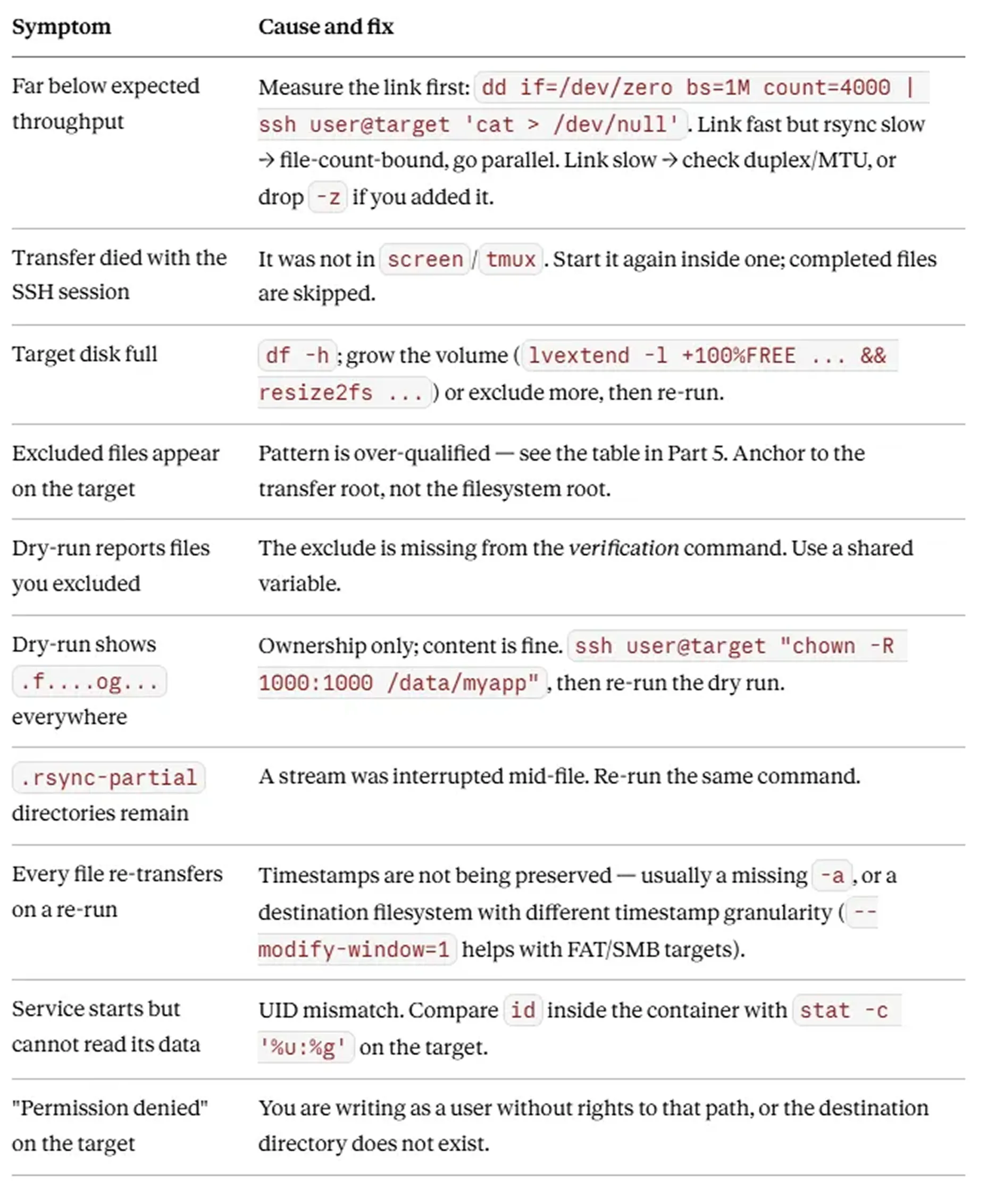
Part 11 — Troubleshooting
The short version
If you skim one section, this one:
Profile first — hard links, ACLs/xattrs, ownership spread, average file size, AES-NI, free space. Six commands, two minutes, and they determine everything downstream. Never copy a command you have not profiled for.
Average file size is a design input. It decides
-W, it decides whether resume-from-scratch is acceptable, it decides whether parallelism will help.Know what a partial write looks like in your storage model. In content-addressable storage it looks like a healthy file. That single fact makes
--partial-dirmandatory and plain--partialdangerous.Run it in
screenortmux, and know that re-running the identical command resumes.Stop the service, and dump the database inside the same window. Consistency between the two is not automatic.
Verify in layers. Metadata checks are cheap and worth running, but they read no content. Sample-checksum something, then open the application and use it for real.
LAN and WAN invert the defaults.
-zbecomes a bottleneck on a fast local link; a hardware-accelerated cipher beats the safe software default. Know which network you are on.
The command is the easy part. The reasoning is what makes it correct for your data.
Source: https://medium.com/@ysnhasturk/how-to-move-large-data-between-linux-servers-with-rsync-3fb5d150c5f4